
You are in the server. These are the things you will do most on Discord. Each one takes a minute to learn.
Post in a forum channel
Some channels, like channel ask-for-help and channel get-involved, are forums. In a forum, every question or request is its own post with a title, and replies stay inside that post, so nothing gets lost.
To start a new post:
-
Open the channel.
-
Click or tap New Post at the top of the channel. On a phone, it may be a button with a +.
-
Give it a short title that says what it is about, like "Error when I run npm install".
-
Add a tag if the channel asks for one. Tags are labels that say what the post is about, like Events or Career. Pick the one that fits.
-
Write your message underneath and send it.
To reply to someone else's post, open the post by clicking or tapping its title, then type in the message box at the bottom.
TIP
Pinned posts sit at the top of a forum with a pin icon. They hold things you should always be able to find, like who leads each team.
Share a win or an idea
Two more forums worth knowing, under COMMUNITY in the channel list:
- channel wins-and-milestones: got your first job or internship, shipped a project, finished a hackathon, passed a certification, or gave a talk? Make a new post, pick the tag that fits (like First job or Project shipped), and add a picture if you have one. Everyone gets to celebrate with you, and the leads read it when they write the monthly recap.
- channel suggestions: an idea to make the community better? Make a new post with your idea in a few lines.
Big or small, both count. A first pull request is a win too.
Share a resource
Found a course, tool, book, video or podcast that helped you learn? Share it in channel resources, under LEVEL UP. The next person learning the same thing will thank you. Any field is welcome.
-
Open channel resources.
-
Copy this and paste it in the message box:
plaintext>>> **Name:** **What it is:** **Good for:** **Link:** -
Fill in each line after the colon, then press Enter.
You will see: your resource as a neat card, with the labels in bold and a clickable link.
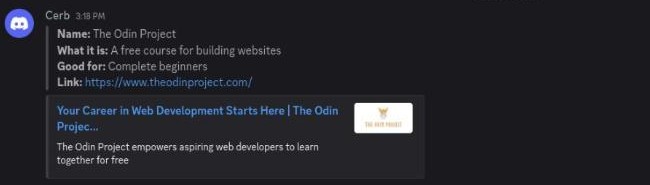
Please share one resource per message, and no self-promotion. Want to ask about a resource someone shared? Reply in a thread, so the channel stays easy to scroll.
Talk in the open
We keep conversations in the channels, not in private messages. When you ask and answer in the open, everyone learns from it, more people can help, and our moderators can keep the space safe.
- Need someone in particular? Mention them in the channel, like
@kofi. See Mention someone below. - Got a private message from someone you don't know, especially one offering jobs, money or prizes? Don't click its links. Tell our moderators: see Staying safe.
Send a file or a picture
- Click or tap the + button on the left of the message box.
- Pick the file or picture.
- Add a message if you like, and send.
Mention someone
To get someone's attention in a channel, type @ and the start of
their name, then pick them from the list that pops up. They get a
notification. Use it when you need that person, not for everyone.
Ask a good question
Questions about anything tech go in channel ask-for-help, as a new post. Getting unstuck explains when to use AI and when to ask people, and Ask a good question shows you how to post, step by step.
Calm your notifications
A busy server can buzz all day. You do not have to turn notifications off; you can choose to be alerted only when someone mentions you.
For the whole server:
- On a phone: tap the server's name at the top of the channel list, tap Notifications, and choose Only @mentions.
- On a computer: right-click the server's icon in the server list, click Notification Settings, and choose Only @mentions.
For one noisy channel: press and hold it (phone) or right-click it (computer), and choose Mute Channel.
Report a message
See a message that breaks our rules, like an insult, spam or anything that feels wrong? Tell our moderators privately:
- On a phone: press and hold the message, tap Apps, then Report to moderators.
- On a computer: right-click the message, choose Apps, then Report to moderators.
Add a note if you like, and send. Only the moderators see it, and the person you reported is not told. Staying safe covers private messages and everything else.
If your message disappears
Vector, our bot, watches the server for two things. Neither means you are in trouble.
- A word on our blocked list. Vector deletes the message straight away and sends you a private message saying it was removed for containing a banned word. Now and then an ordinary message gets caught by mistake. Write it again with different wording.
- Lots of messages very fast. If you send 5 messages within 5 seconds, Vector stops you from sending messages for 10 minutes and tells you in a private message. Wait, then carry on. Next time, put everything in one message.
Think a message was removed by mistake? Ask in channel ask-for-help and say what you wrote. A moderator will look.
NOTE
Vector's private messages only reach you if you allow messages from server members. If your message vanished and nothing arrived, it was most likely one of these two.
Can't find a channel?
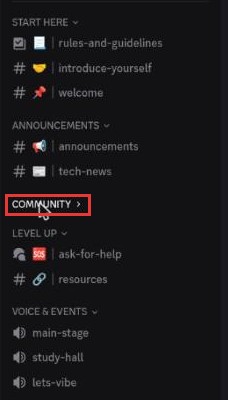
Channels are grouped under headings, like COMMUNITY and LEVEL UP. Clicking a heading folds it up and hides its channels. It is easy to do by accident.
-
Look for a heading with a small arrow pointing right (›). That one is folded.
-
Click the heading.
You will see: its channels again, and the arrow points down.
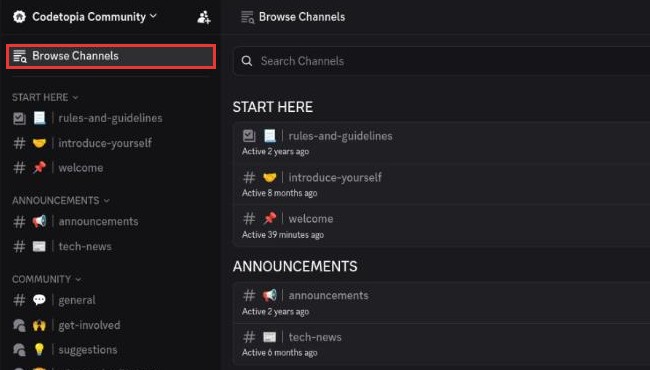
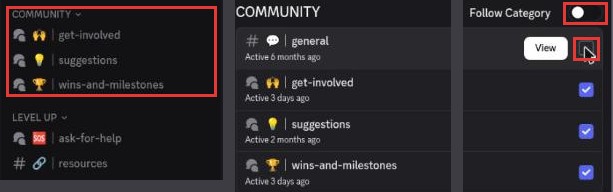
Still can't find it? Click Browse Channels at the top of the channel list. It shows every channel in the server, and you can type the name in Search Channels. Point at a channel and click View. The channel opens in a panel on the right.
Followed channels
In Browse Channels, each heading has a Follow Category switch and each channel has a tick. When you join, they are all on, so you see every channel.
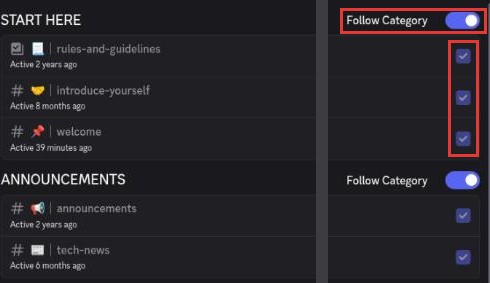
You can turn them off. If you turn off a heading's switch and then untick a channel, that channel disappears from your list.
WARNING
We recommend you leave them all on. If you hide channels, you can miss announcements, events and replies to your questions, and it gets confusing fast.
If a channel is missing because you turned it off:
-
Click Browse Channels.
-
Find the channel and tick it.
You will see: the channel back in your list.
-
Turn the Follow Category switch next to its heading back on, the way it was when you joined.
Lost? Ask Vector
Type /newhere in any channel. Vector, our bot, shows you the four things you can do next. Only you can see its reply.
What's next?
Time to say hello.