
What is Discord?
Discord is a free app that communities use to talk, share, and learn together. The Codetopia Community has its own space on Discord, called a server, and that is where the community lives every day.
Inside the server, conversations are split into channels, like rooms
in a building, one for each topic. Channel names start with #, so
channel ask-for-help is the room for asking for help.
This guide will take you from zero to fully inside our server, step by step.
Step 1: Download Discord and create your account
We recommend installing Discord on both your phone and your computer, so you are never cut off from the community.
TIP
On a computer you do not have to install anything. You can use Discord in your web browser at discord.com/app. Handy if your computer is low on space.
Discord has an official guide that walks you through this. Before you open it, here is what to expect:
- You will download the Discord app (from your phone's app store, or from discord.com on a computer)
- You will create an account with a username, your email address, and a password
- Discord asks for your date of birth. Use your real one. You must be at least 13
- Discord may show an "Are you human?" check, like ticking a box or picking pictures. Just complete it
- Discord will send a verification email. Open your inbox and click the link inside it
- You do not need to change any other settings. Ignore everything else for now
IMPORTANT
Your Discord account is separate from your Codetopia Community portal account. You now have two accounts. Keep both email addresses and passwords somewhere safe. You will connect the two accounts later in this guide.
You only need to create your Discord account once. If you install Discord on a second device, just log in with the same email and password. Everything follows you.
TIP
Once your account is created and verified, come back here and continue with Step 2.
Step 2: Turn on notifications
Turn on notifications on both your phone and your computer so you never
miss announcements, replies, or mentions (when someone writes your
name with an @ in front, like @kofi, so you get alerted).
Discord's official guides show you where the setting is. You are looking for one thing only: the setting that turns notifications on. Ignore every other option for now. If it ever gets too noisy, Using Discord shows how to be alerted only when someone mentions you.
Mobile notifications guide Desktop notification guideTIP
Once notifications are on, come back here and continue with Step 3.
Step 3: How Discord works
Before you join our server, let's look at what you will see, so nothing feels unfamiliar when you land. Discord looks different on a computer and on a phone, so we will show you both.
On a computer
On a computer, you see everything at once, in three areas side by side:
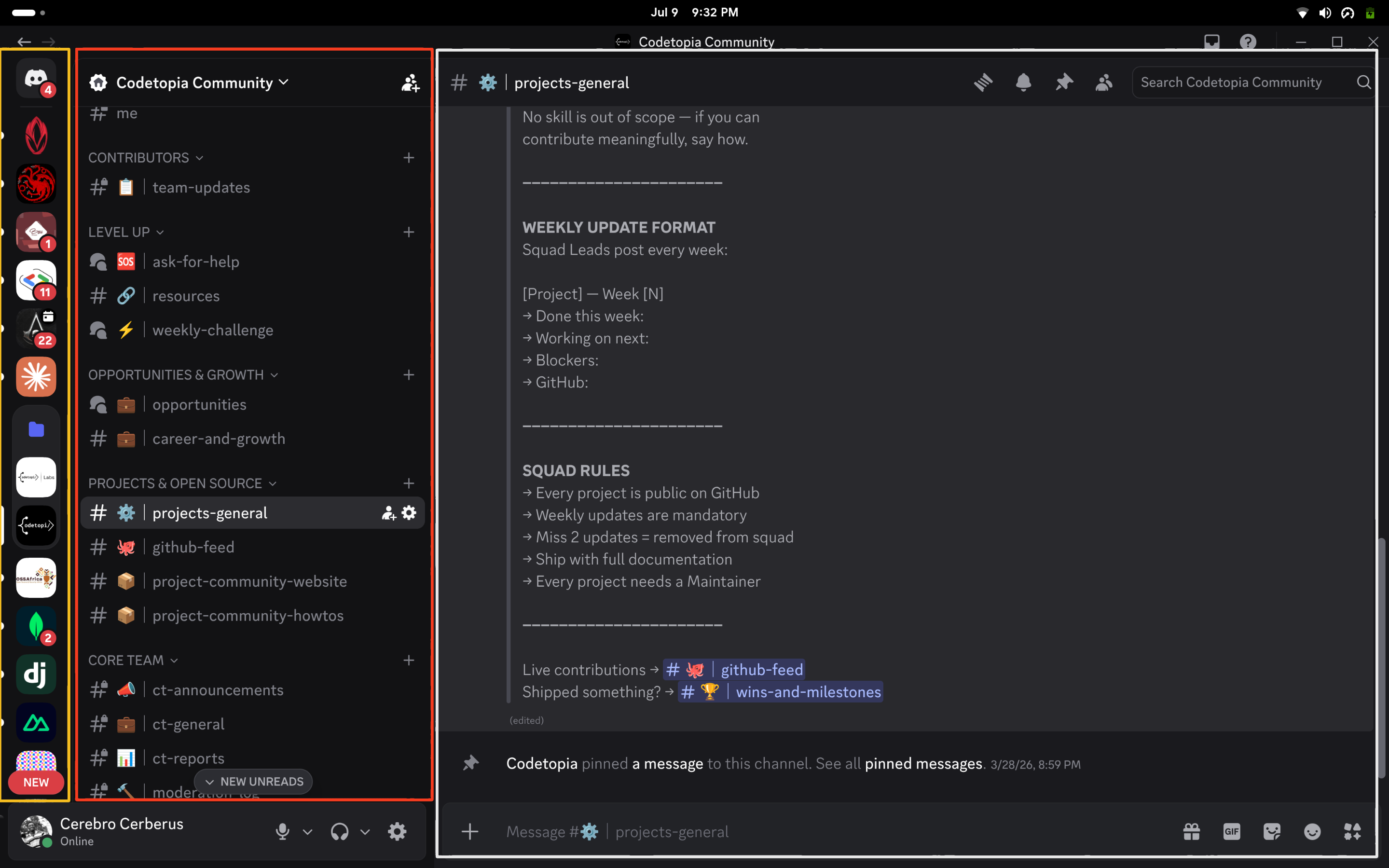
- The server list, the strip of round icons on the far left. Each icon is a server, which is a community's own space. Click an icon to enter that server.
- The channels panel, right next to the server list. A channel is a room for one topic. Channels are grouped into categories, like folders. Click a channel to open it.
- The message area, the big space on the right. This is where the conversation happens. Type your message in the text box at the very bottom and press enter to send.
On your phone
On your phone, you see one panel at a time instead of everything at once.
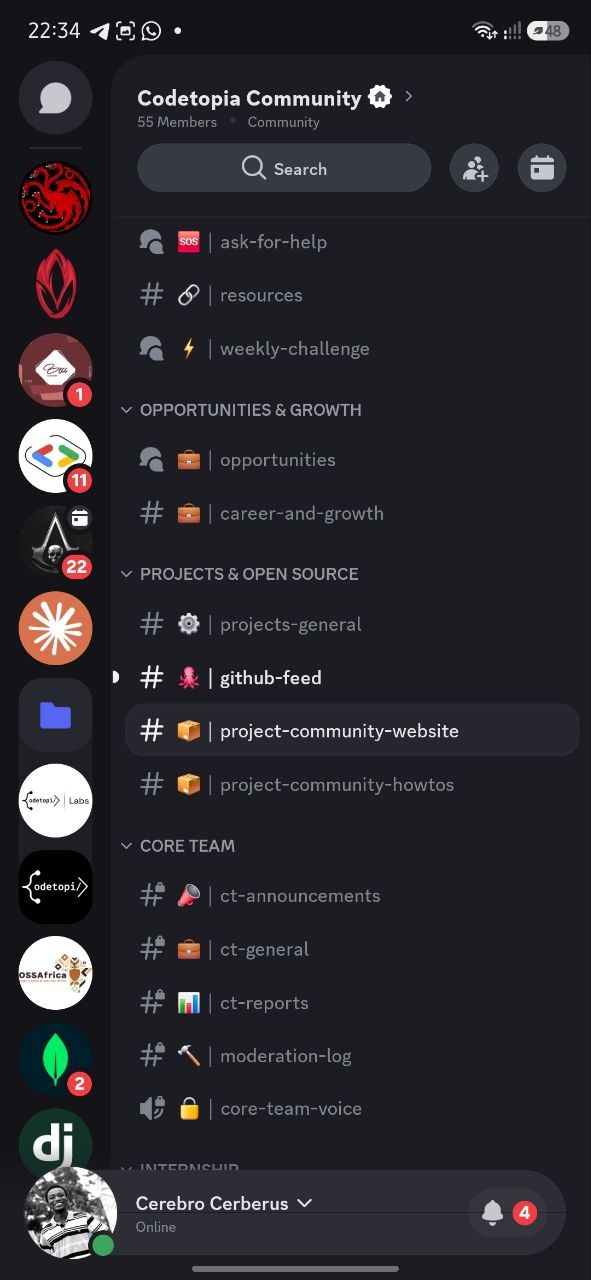
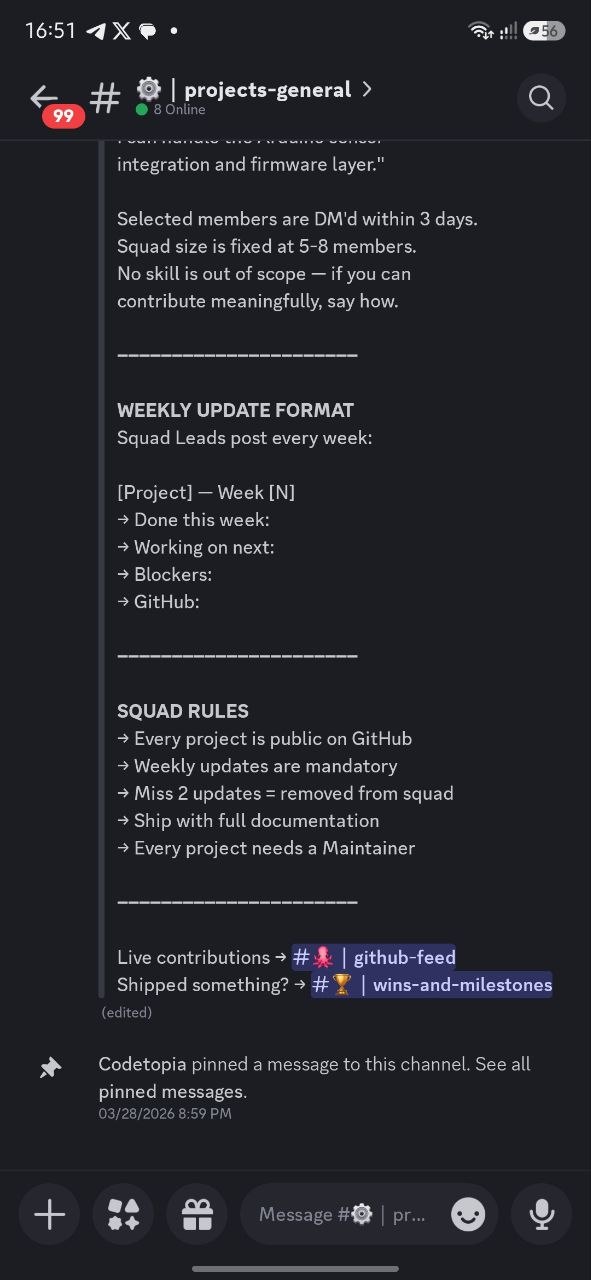
- The server list is the strip of round icons along the left edge
- Tap a channel name to open it. The conversation fills your whole screen
- To go back to the channel list, swipe right. Remember this one, it is the number one thing new members get stuck on
Step 4: Join the Codetopia Community server
-
Click this link: Join the Codetopia Community server.
You will see: Codetopia Community invited you to join, with a blue Accept Invite button. Click it.
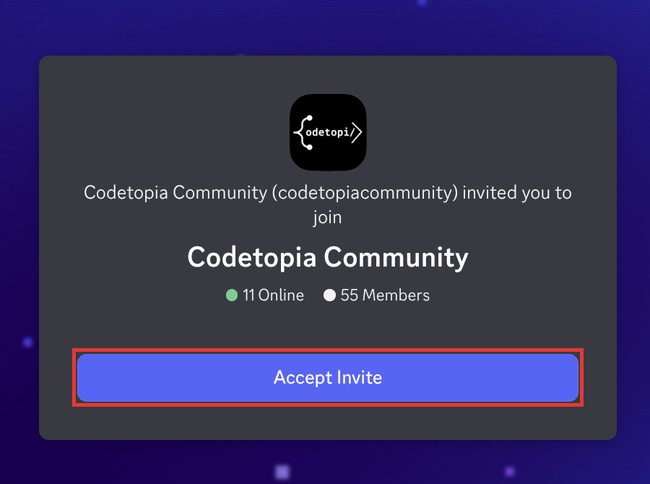
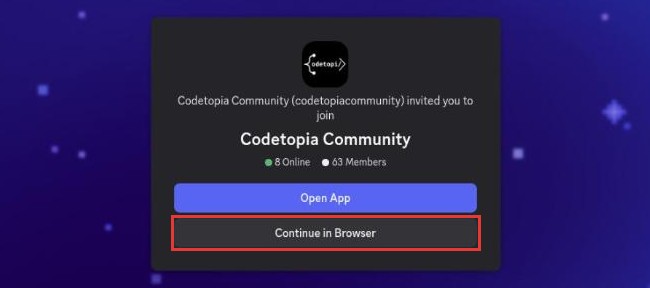
After a moment, the button may change to two buttons: Open App and Continue in Browser. If you installed Discord in Step 1, click Open App. If not, click Continue in Browser. Both work.
-
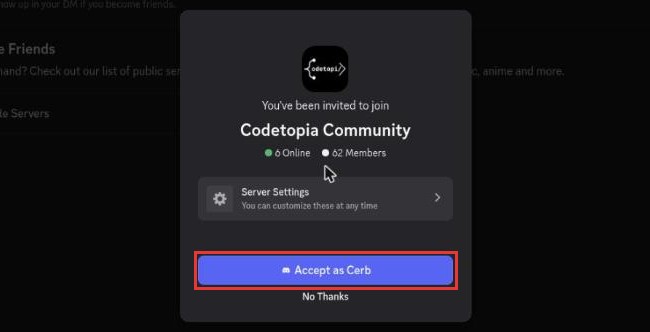
You will see: You've been invited to join Codetopia Community, with a blue button that says Accept as and your Discord name. Click it.
-
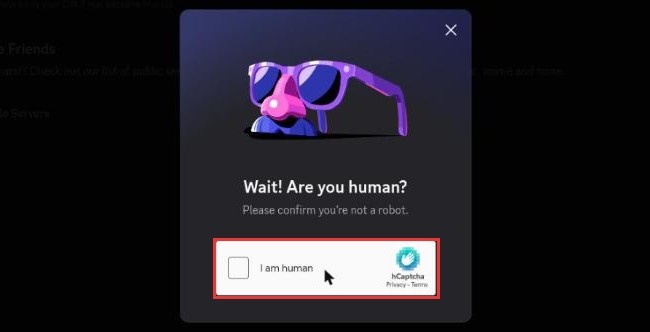
You will see: Wait! Are you human? Click the box next to I am human. If Discord shows you pictures, follow what it asks. This check keeps spam bots out.
-
You will see: the server, with a blue bar at the top that says You must complete a few more steps before you can start talking in this server. Click Complete on that bar.

-
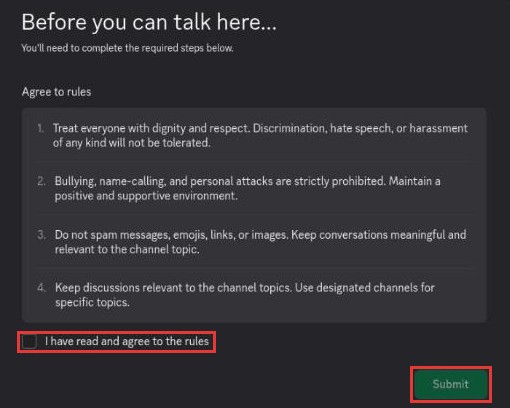
You will see: Before you can talk here... and our rules. Read them. Tick I have read and agree to the rules, then click Submit.
TIP
You will know you are in when the blue bar is gone and you see a short list of channels under a heading called START HERE: rules-and-guidelines, introduce-yourself, welcome and verify. That is all you can see for now. The rest unlocks in Step 5.
Step 5: Verify your account
IMPORTANT
This step needs your portal account, the community account from Join the community. No portal account yet? Do that guide first, then come back here.
Right now you can only see a few channels. The rest of the server is locked until you verify. It takes two minutes.
When you enter the server, you will land in the channel welcome channel, where you will see a message like this:
Welcome to Codetopia Community, @yourusername. Read channel rules-and-guidelines, then head to channel verify and run /link to connect your Codetopia portal account and unlock the server.

Follow these steps exactly:
-
Read the rules. Open the channel rules-and-guidelines channel and read through it. Every member is expected to know and follow the rules.
-
Open the channel verify channel. Find channel verify in the channels panel and open it.
-
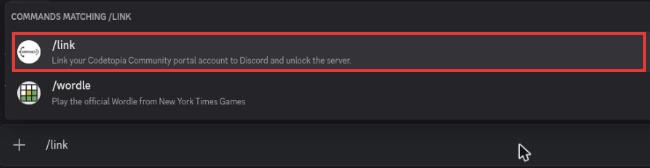
Type the link command. Click the message box at the bottom of the screen and type /link with no spaces.
You will see: a small menu above the message box. It may list more than one command. Click the one called /link that says Link your Codetopia Community portal account to Discord and unlock the server. Then press Enter.
-
You will see: a reply from Vector, our bot, with a long link that starts with
https://portal.community.codetopia.org. Only you can see this reply. Click the link.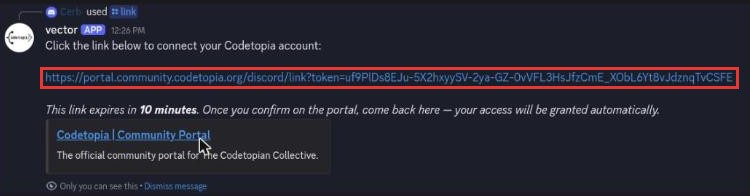
IMPORTANT
The link expires after ten minutes and works only once. If it has expired, go back to channel verify and type /link again to get a fresh one.
-
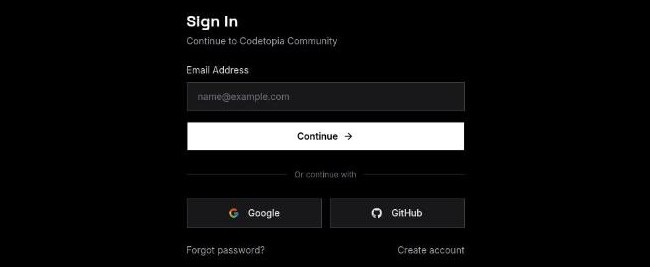
The portal opens in a new browser tab. What you see depends on whether you are already signed in to the portal.
A. You see Sign In. You are not signed in yet. Sign in with your portal account, not your Discord one: type the email you used for the portal and click Continue, or click Google or GitHub if that is how you signed up. After signing in, you will see the Connect Discord page from part B.
B. You see Connect Discord. You are signed in. Click the white Confirm button. This joins your two accounts.
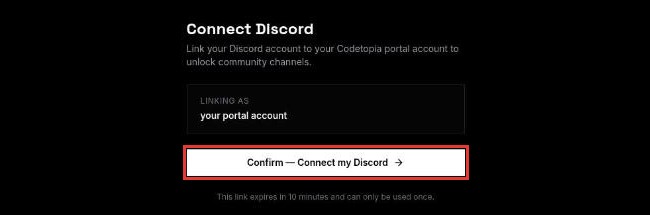
You will see: You're all set!

-
Go back to your Discord tab or app. Within a few seconds, the channel verify channel disappears and many more channels appear, under headings like ANNOUNCEMENTS, COMMUNITY and LEVEL UP.
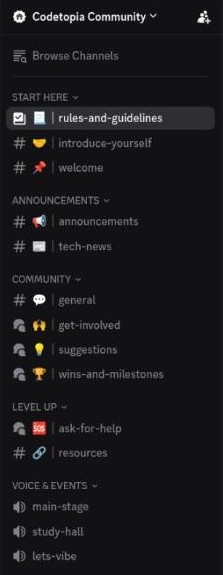
You are in. Welcome to the Codetopia Community.
TIP
If nothing happens when you type /link, check that you are in the
channel verify channel, and that there is no space before the /. If it
still does not work, ask for help right there in the channel. Someone
will help you.
If the portal shows a message instead of "You're all set!":
| You see | What to do |
|---|---|
| This link has expired | Go back to channel verify and type /link again for a fresh link |
| This link has already been used | Type /link again. Each link works once |
| Invalid link or Missing token | Type /link again and click the new link, rather than copying it |
| Sign In, and you have no portal account | Do Join the community first, then type /link again |
Meet Vector, our bot
The account that replies to /link is Vector, the community's bot. A bot is an automatic account: there is no person typing, it answers instantly, day or night.
Vector welcomes new members, checks your portal account when you type /link, and unlocks the channels for you. You can also type /newhere anywhere to see the four things you can do next.
You are done when
All three are true:
- You can open the Codetopia Community server on at least one device
- You have read channel rules-and-guidelines and agreed to the rules
- You can see more than the four START HERE channels
Both of your accounts are connected and the whole server is open to you.
What's next?
You are in. Next, three small skills you will use all the time: posting in a forum channel, mentioning someone, and sending a file. Five minutes.