
Stuck? Ask in channel ask-for-help. The people who answer are members like you, helping in their free time. A clear question gets an answer in minutes. A vague one takes hours of back and forth.
Ask about anything tech: code, apps and tools, your laptop or phone, design, data, hardware, networks, careers in tech, or Codetopia itself. No question is too basic. Everyone here started as a beginner.
Step 1: Check if it's already answered
-
If there is a message on your screen, read it to the end. It often says what is wrong.
-
Open channel ask-for-help. Click the box at the top that says Search or create a post... and type one word from your problem, like Excel, Canva or portal.
You will see: only the posts that match your word. Click a title to open that post. If nothing matches, you will see No matching posts.
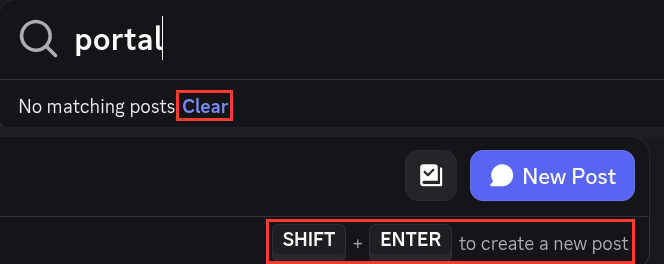
WARNING
Do not press Shift and Enter together in this box. That posts your search words as a new question straight away.
- Found your answer? You are done. Not there? Click Clear under the box and go on to Step 2.
Asked an AI tool and it didn't help, or you're not sure it's right? That's fine. Keep what it told you: you will add it in Step 3.
Step 2: Start a new post
-
Click New Post at the top right of the channel.
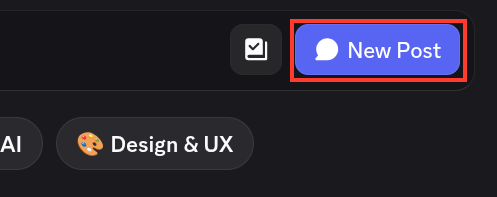
You will see: a form above the posts, with Title, Enter a message... and a row of tags.
-
Click Title and type what is wrong, in a few words.
- Good: VLOOKUP shows #N/A even though the name is in my list
- Good: Can't download my Canva design as a PDF
- Good: Servo motor not moving with Arduino Uno
- Not helpful: Please help
- Not helpful: It's not working
The first time, the channel's Post Guidelines may appear under the form. They are short and worth reading once.
Step 3: Write your message
-
Click Enter a message.... Copy these lines, paste them in, and fill in each one:
plaintextI'm trying to: What I did: What happened instead: What I tried, including AI: My setup:What I tried, including AI means what you already tried, and what any AI tool told you. My setup means what you are using, like Excel on Windows 11, Canva on my phone or Arduino Uno.
To start a new line, hold Shift and press Enter.
-
Got an error message, a formula or code? Paste it as text, not as a photo of your screen, so people can copy it. Type three backticks on the line before it, and three again on the line after it:
plaintext``` paste it here ```The backtick key is at the top left of most computer keyboards, under Esc and left of 1. It is not the quote key next to Enter. On a phone, look in the symbols keyboard.
You will see: the text between the backticks change to a typewriter-style font.
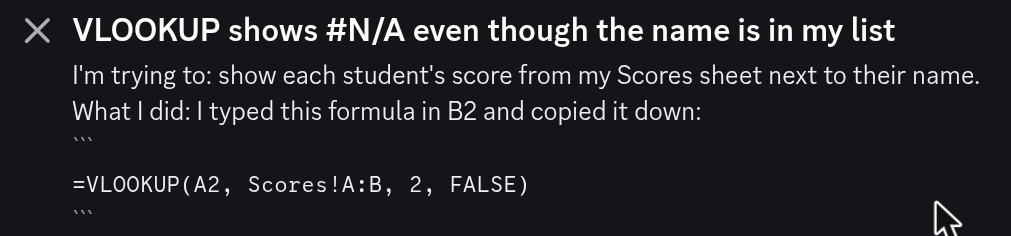
For things you can see, like a design, a page that looks wrong or your wiring, add a picture. Use the picture button at the top right of the form.
WARNING
Remove passwords, sign-in codes, keys and personal details first, in your text and in your pictures. Everyone in the server can read your post. Posted one by mistake? Change it right away, then edit your post.
Here is a full example:
I'm trying to: show each student's score from my Scores sheet next to their name.
What I did: I typed this formula in B2 and copied it down:
```
=VLOOKUP(A2, Scores!A:B, 2, FALSE)
```
What happened instead: every cell shows #N/A, even for Ama Mensah, who is on both sheets.
What I tried, including AI: I checked the spelling. ChatGPT said to add FALSE at the end. I already had it, and it still shows #N/A.
My setup: Excel (Microsoft 365) on Windows 11.
Step 4: Pick a tag and post
-
In the row of tags, click the one closest to your topic, like Data & AI or Design & UX. New to this? Click Beginner too. Not sure which fits? Click General.
Do not pick ✅ Solved yet. That comes at the end.

-
Click Post at the bottom right of the form.
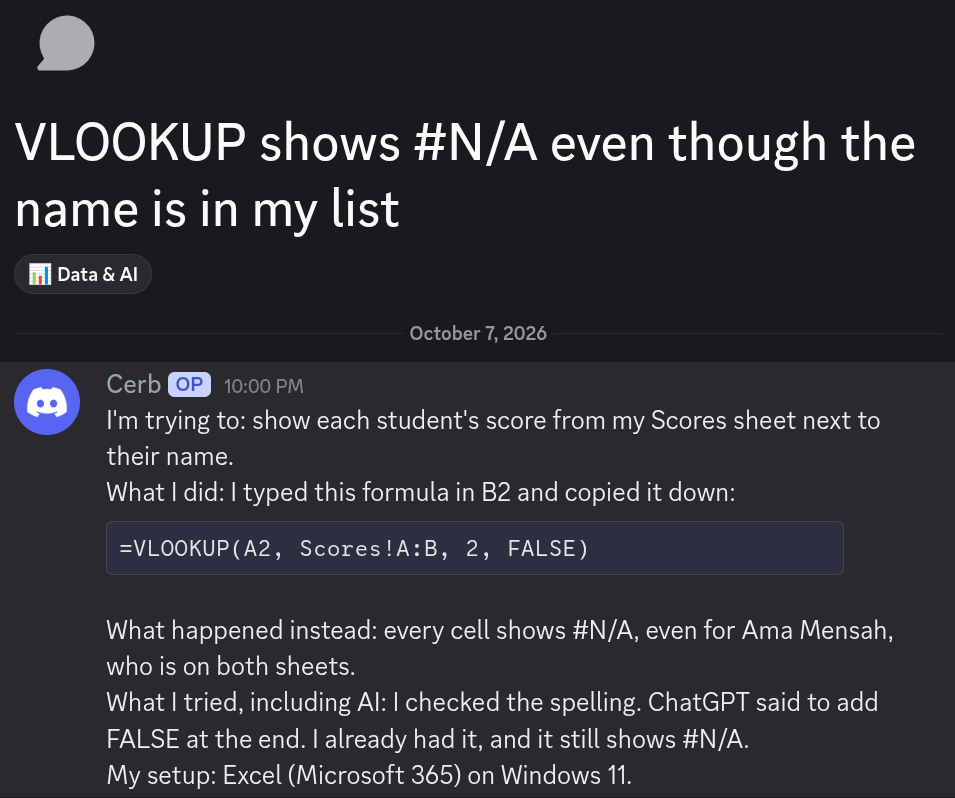
You will see: your post open on the right, with your name and an OP label next to it. OP means original poster: the person who asked.
Step 5: While you wait
- Someone will reply when they can. Replies show up inside your post.
- To find your post again, look under channel ask-for-help in the channel list on the left.
- If someone asks you something, answer in your post.
- Keep it in one place. Don't post the same question in other channels, and don't message people privately unless they offer.
- No answer after a day? Reply in your post with anything new you have tried. That moves it back to the top.
Step 6: Mark it solved
-
Reply in your post with what fixed it. One line is enough.
-
Click ⋯ at the top right of your post, then Edit Tags. Scroll down the list of tags and tick ✅ Solved.
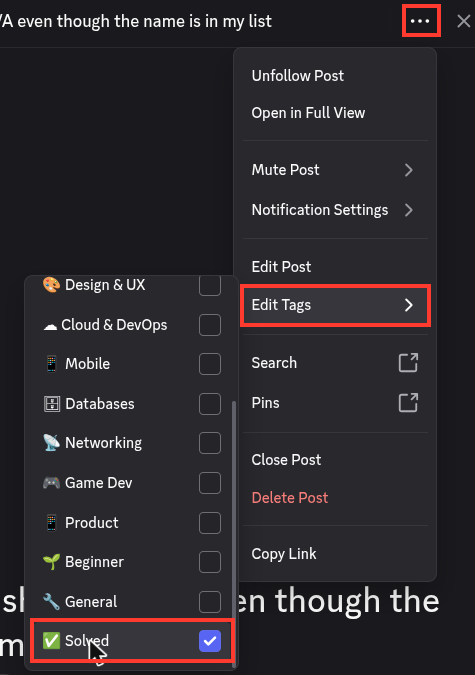
You will see: ✅ Solved next to your post's other tags.

-
Thank whoever helped.
You are done. The next person with the same problem will find your answer.
Next, if you like: help someone else
Open a post in channel ask-for-help that you know something about, and reply.
- Answer in your own words. If AI helped you, check it first, and say so.
- Explain why, not just the answer. A hint often helps more.
- Never reply "just ask ChatGPT", and never make fun of a question.