
Every X Space, meetup and conference we run is on one shared calendar. Add it to your own calendar once, and new events show up there on their own.
About five minutes. Pick the option for the calendar you use:
- Google Calendar, on an Android phone or any computer (Windows, Mac or Linux)
- iPhone (Apple Calendar)
- Mac (Apple Calendar)
Option 1: Google Calendar
Before you start
You need a Google account (you have one if you use Gmail). On a phone, you also need the Google Calendar app.
TIP
On a computer? Open calendar.google.com. On the left, next to Other calendars, click + (Add other calendars), then From URL. Paste this link and click Add calendar:
https://calendar.google.com/calendar/ical/eventscodetopiacommunity@gmail.com/public/basic.ics
You are done. Sync is only needed on a phone.
Step 1: Add the calendar
-
Open this link on your phone:
Codetopia Community calendarIt opens in your browser.
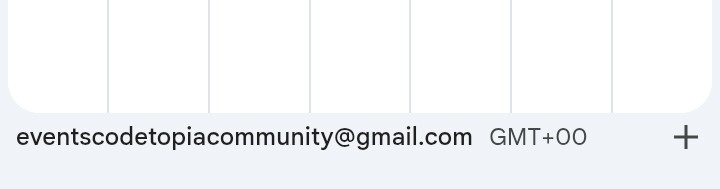
-
Tap the plus sign at the bottom right of the page.
-
The Google Calendar app opens. Pick the Google account you want to add the calendar to.
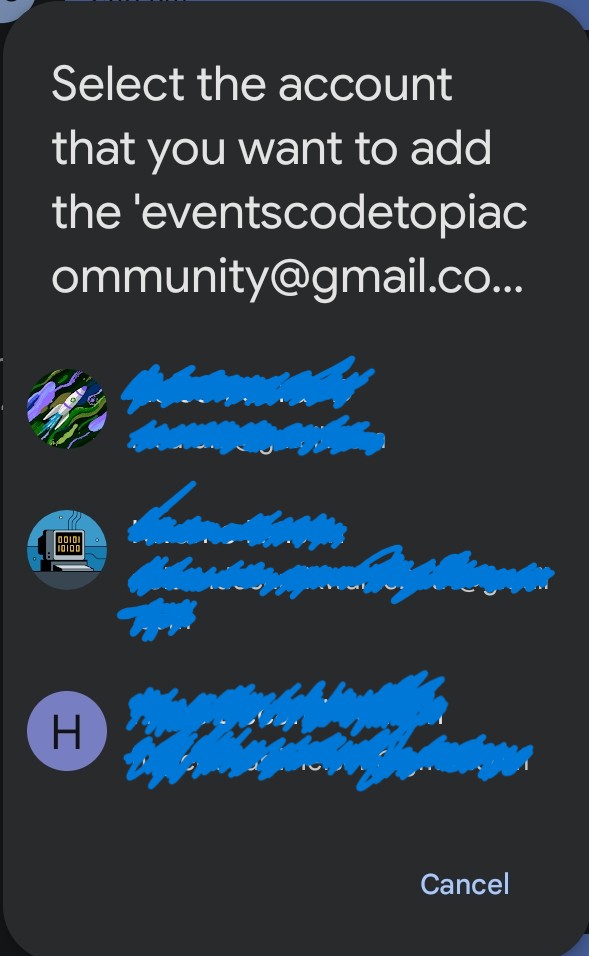
You will see a message that the calendar was added.
Step 2: Turn on sync
This makes sure new events keep showing up.
-
In the Google Calendar app, tap the menu icon (three lines) at the top left.

-
Scroll down and tap Settings.
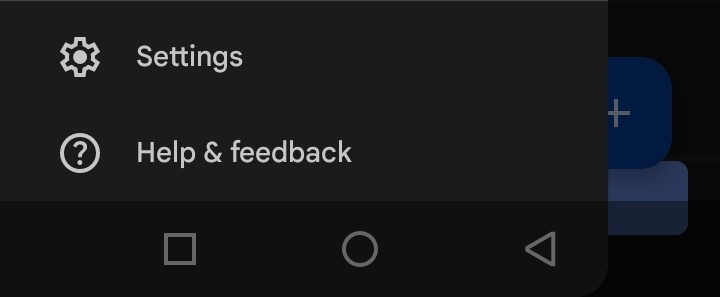
-
Tap Events Codetopia Community in the list of calendars.

-
Make sure the Sync switch is on. If it already is, leave it.
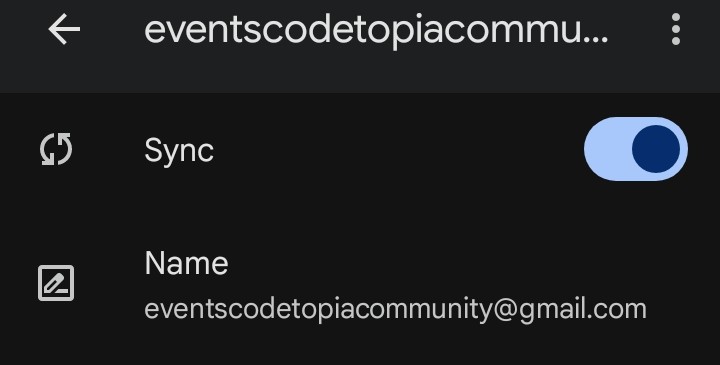
You are done when
Our events appear in your calendar next to your own.
Not showing up? Check that Sync is on, then wait a few minutes. Still nothing? Ask in channel ask-for-help.
Option 2: iPhone (Apple Calendar)
You can add the Codetopia Community calendar to the Apple Calendar app with its calendar link (sometimes called an iCal link).
Copy this link: Codetopia Community calendar To copy the address, press and hold the link and tap Copy Link.
-
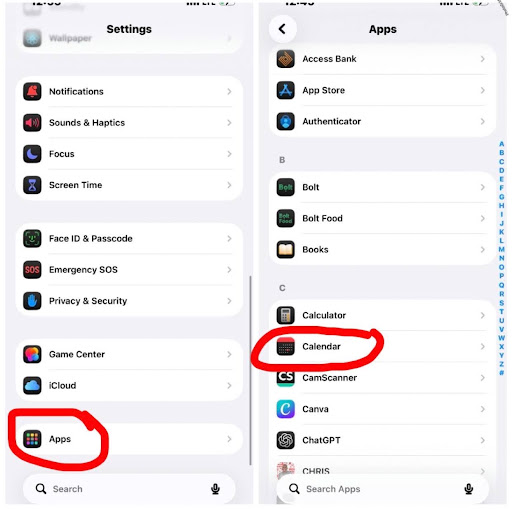
Open the Settings app on your iPhone, scroll down and tap Calendar. On newer iPhones (iOS 18 and later), tap Apps first, then Calendar.
-
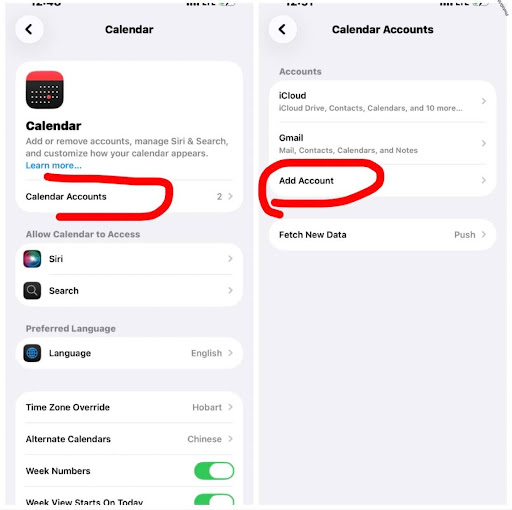
Tap Accounts (on newer iPhones, Calendar Accounts). This is where your iPhone manages the calendars connected to it.
-
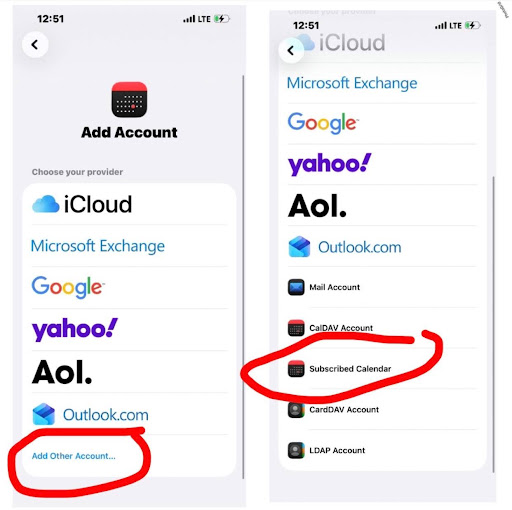
Tap Add Account → Other → Add Subscribed Calendar. Make sure you pick Add Subscribed Calendar. You're subscribing to an existing calendar, so you don't need to create a new one or add an email account.
-
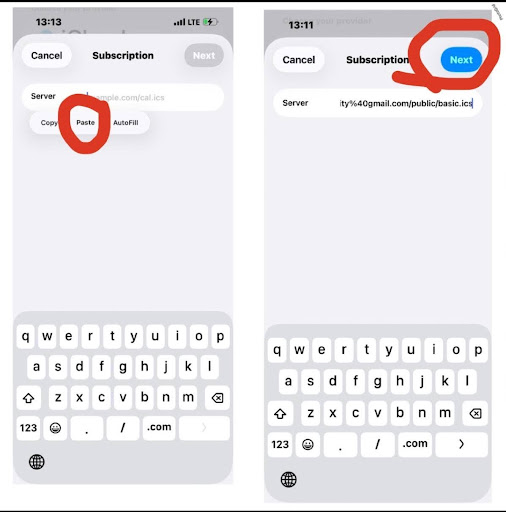
Paste the link you copied into the box labelled Server, then tap Next. (Apple calls it "Server". It just means the calendar's address.)
-
Check the calendar details, then tap Save.
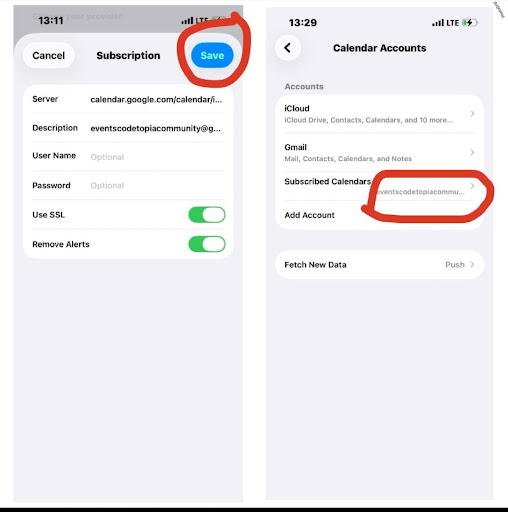
-
Open the Calendar app and tap Calendars at the bottom. Make sure Codetopia Community is checked so its events show.
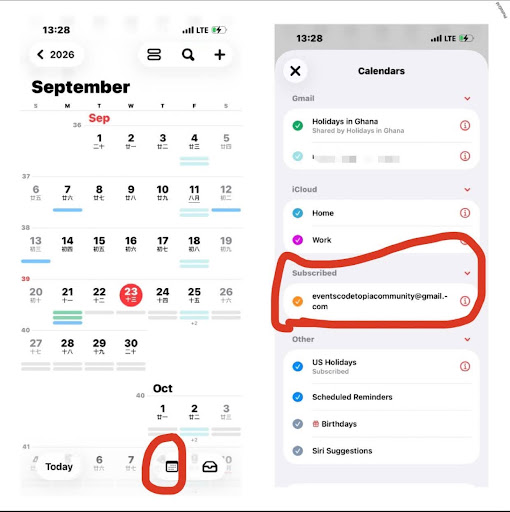
What's a subscribed calendar? It's a calendar you connect to and receive updates from. You don't have to add Codetopia events yourself, because new ones appear in your Apple Calendar automatically.
Codetopia Community events now appear in your Apple Calendar.
Option 3: Mac (Apple Calendar)
You can add the same calendar to the Calendar app on your Mac.
Copy this link: Codetopia Community calendar To copy the link on a Mac, right-click it and choose Copy Link Address.
- Open the Calendar app. To find it, press Command (⌘) and Space together, type Calendar, and press Return.
- In the menu bar at the top of the screen, click File → New Calendar Subscription.
- Paste the link into the field and click Subscribe.
- Choose your settings. You can leave everything at the defaults:
- Name: what the calendar is called on your Mac.
- Color: the color its events use.
- Location: where the calendar is stored.
- Auto-refresh: how often your Mac checks for updates.
- Click OK.
- Look at the left side of the Calendar app. Codetopia Community should be listed under your calendars. If you don't see its events, make sure it's checked.
The Codetopia Community calendar is now on your Mac.
What's next?
See you at the next event. And when you feel like helping, there are four easy ways in.