
You will add a short file about yourself to our practice project on GitHub, and we will accept it. About 15 minutes. You cannot break anything: the project is made for practice.
Take your time. Everyone here started as a beginner. Stuck at any point? Ask in channel ask-for-help.
Before you start
-
You need a GitHub account. No account yet? Create one, it is free. Then make sure you are signed in on github.com.
-
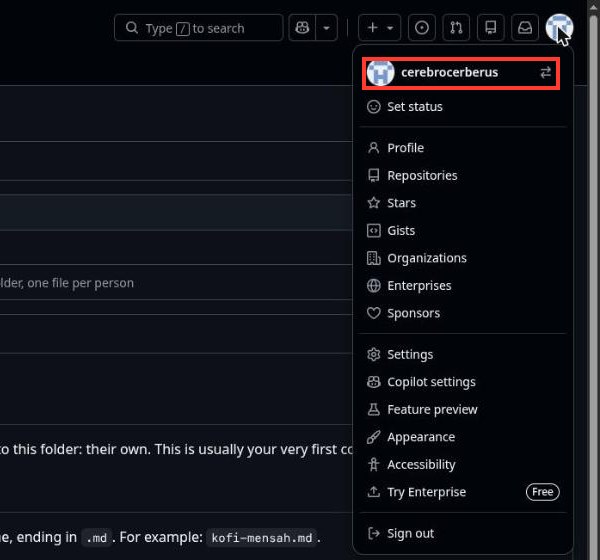
Click your profile picture: the small circle at the top right.
You will see: a menu. Your username is at the very top. Write it down exactly, with the same letters and dashes. Then click anywhere else to close the menu.
Step 1: Make your own copy
-
Open our practice project: open-source-practice.
-
At the top right, click the word Fork. A fork is your own copy of the project.
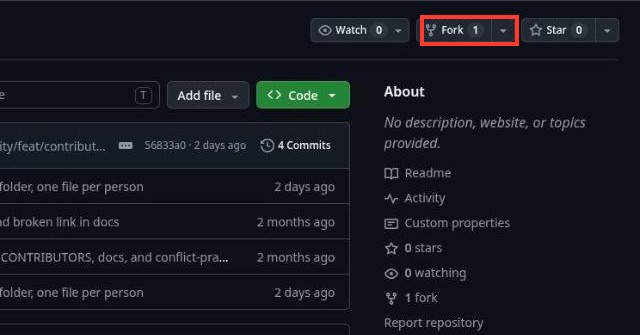
You will see: a page called Create a new fork. If GitHub asks you to sign in first, sign in and carry on.
-
Change nothing. Click the green Create fork button.
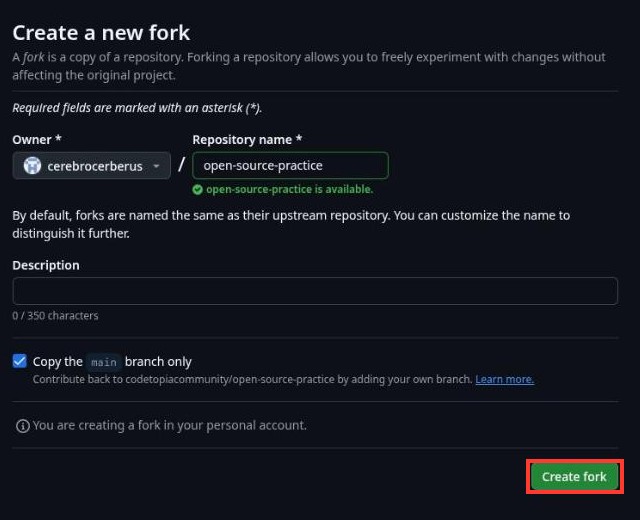
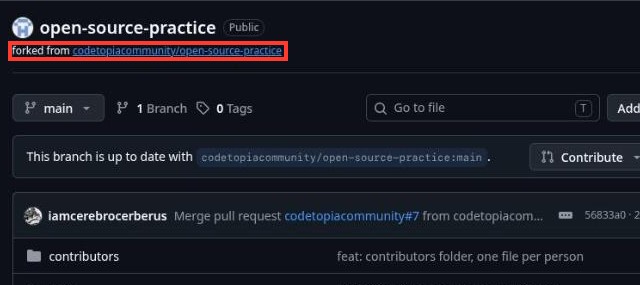
You will see: Forking... for a few seconds, then your copy. Under the big title it says forked from codetopiacommunity/open-source-practice. That line is how you always know you are in your copy.
WARNING
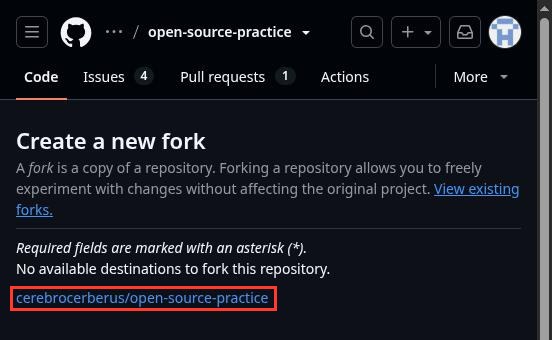
Do you see "No available destinations to fork this repository"? You already made a copy before. Click the link under that message: it opens your copy. Then go on to Step 2.
Step 2: Create your file
-
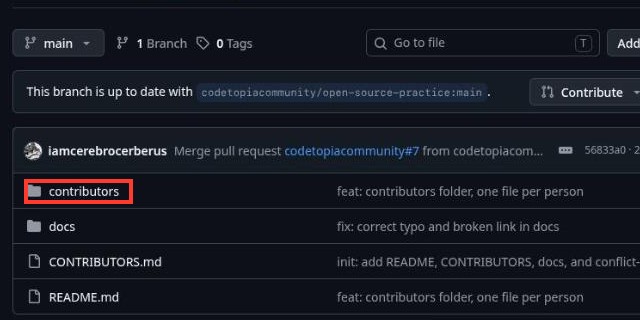
In your copy, click the contributors folder.
-
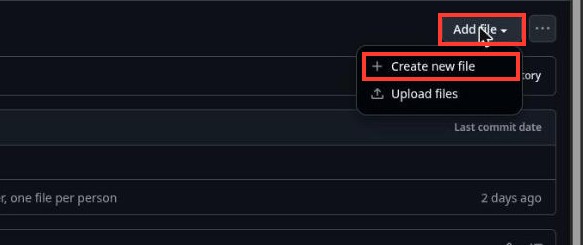
At the top right, click Add file, then Create new file.
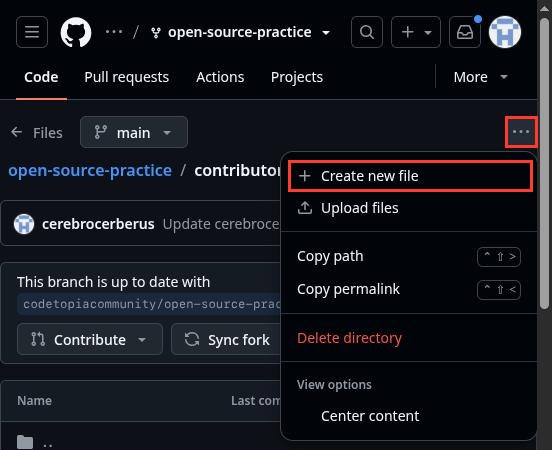
On a phone, there is no Add file button. Tap ⋯ at the top right, then Create new file. Do not tap the red Delete directory.
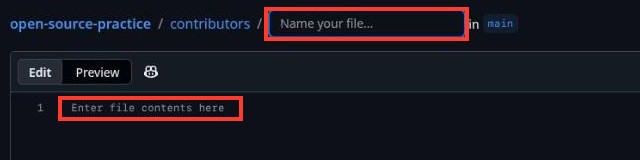
You will see: a small box that says Name your file..., and a big empty box below it.
WARNING
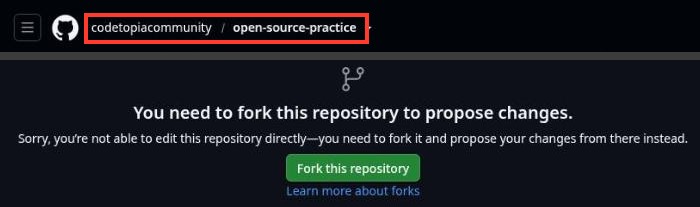
Do you see "You need to fork this repository to propose changes"? You are in our project, not your copy: there is no forked from under the title (on a computer, the top left also says codetopiacommunity). Do not click the green button on that page. Go to your copy instead: click the small circle at the top right, then Repositories, then open-source-practice. Then do Step 2 again.
Step 3: Write about yourself
-
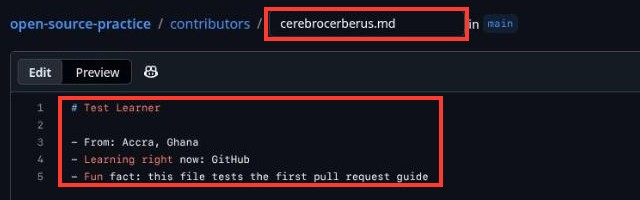
Click inside the Name your file... box. Type your username, then
.md(a dot and the letters m and d), with no spaces. For example:plaintextkofi-mensah.md -
Copy these lines. On a computer, move your mouse over the grey box: a small copy button appears at its top right. Click it. On a phone, the copy button is always there.
plaintext# Your Name - From: Your city, your country - Learning right now: what you are learning - Fun fact: one thing about you
-
Click inside the big box on GitHub and paste: press Ctrl and V together (Cmd and V on a Mac), or right-click and choose Paste. On a phone, press and hold inside the box, then tap Paste.
-
Change the words to your own. Keep the
#and the-at the start of the lines. For example:plaintext# Ama Owusu - From: Kumasi, Ghana - Learning right now: HTML and CSS - Fun fact: I can solve a Rubik's cubeYou will see: your file name in the small box, and your lines in the big box.
If a line with only a
-appears at the end, delete it.
Step 4: Save it
-
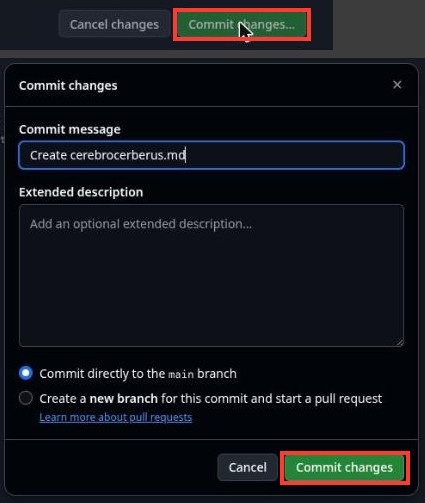
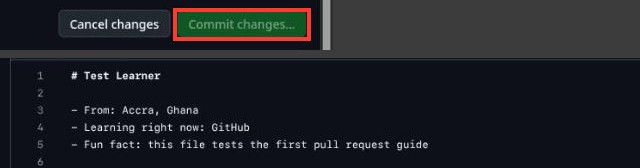
Click the green Commit changes... button at the top right. Commit means save.
You will see: a box in the middle of the page.
-
Click the green Commit changes button at the bottom of that box. You can leave everything else as it is.
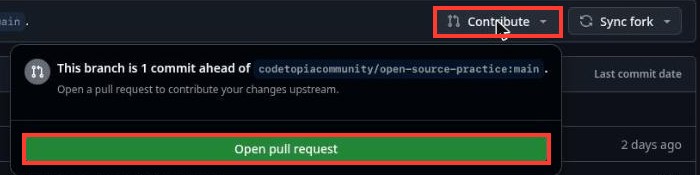
You will see: your file in the list, and near the top it says This branch is 1 commit ahead of codetopiacommunity/open-source-practice:main.

WARNING
Do you see "A file with the same name already exists"? You added your file before. Click Cancel, then click contributors at the top of the page, and go on to Step 5.
Step 5: Ask us to take it
-
On the line that says 1 commit ahead, click Contribute, then the green Open pull request. A pull request asks us to take your change into our project.
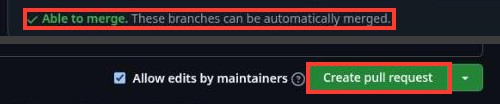
You will see: a page called Comparing changes, with Able to merge in green.
-
Change nothing. Click the green Create pull request button.
You will see: a green Open label at the top. That is your pull request.
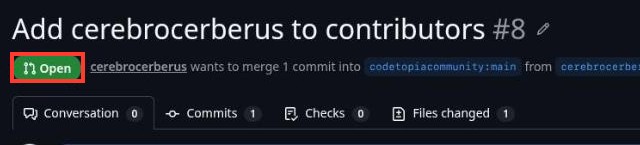
You are done when
🎉 You did it. You made your first pull request. There is nothing else you need to do right now.
What happens next
Someone from our team looks at your pull request. When they do, GitHub sends you an email, and a blue dot appears on the inbox icon at the top right of GitHub. Click it to see what happened.

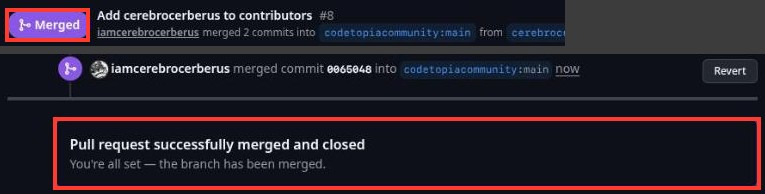
A purple Merged label means we accepted it. Your file is now in our project. Share it in channel wins-and-milestones!
If we ask for a change, that is normal. Go to your copy (the small circle, then Repositories, then open-source-practice), click contributors, then your file. Click the pencil at the top right of your file.
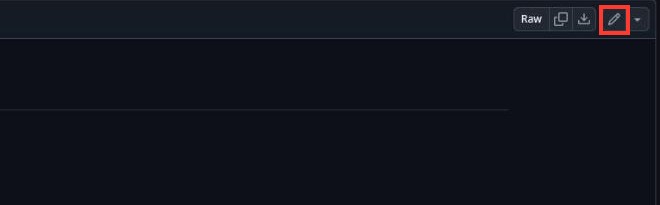
Make the change, then click Commit changes... and Commit changes again, as in Step 4. Your change joins the same pull request on its own.
Nobody has replied after 3 days? Ask in
channel ask-for-help, and paste the address of your pull
request's page. To copy it, click the bar at the very top of your
browser (the address starts with https://github.com/), then press
Ctrl and C together (Cmd and
C on a Mac).
Optional: show it on your portal profile
Once we accept it, your pull request can also show on your Codetopia portal profile, marked PR merged. The portal just needs to know your GitHub username:
- Open your profile settings. Log in first if the portal asks.
- Scroll down to Social Links.
- In the box that says
github.com/username, type the GitHub username you wrote down at the start. - Click Save Changes.
You only do this once. Every pull request we accept from then on shows up on its own, within about 15 minutes.